
产品导入手册
封面
- 产品/系统名称 Logo
- 文档标题:<< 产品导入手册 >>
- 适用产品/系统版本
- 文档版本号 (e.g., v1.0)
- 发布日期
- 公司名称 & Logo
文档修订记录
| 版本号 | 修订日期 | 修订内容摘要 | 修订人 | 审核人 |
|---|---|---|---|---|
| v1.0 | YYYY-MM-DD | 初始发布 | 姓名 | 姓名 |
前言
文档目标
- 向用户介绍产品安装完成后,导入系统的步骤。
目标读者
- 项目经理
- 现场工程师
文档范围
- 产品导入步骤
相关文档
- 前提文档 :《系统概览与安装入门指南》
- 关联文档 :《软件用户操作与系统管理手册》
具体步骤
System login
- Click "System Entry" to enter the system page.


- Password login
account:admin
password:123456
- Login successful
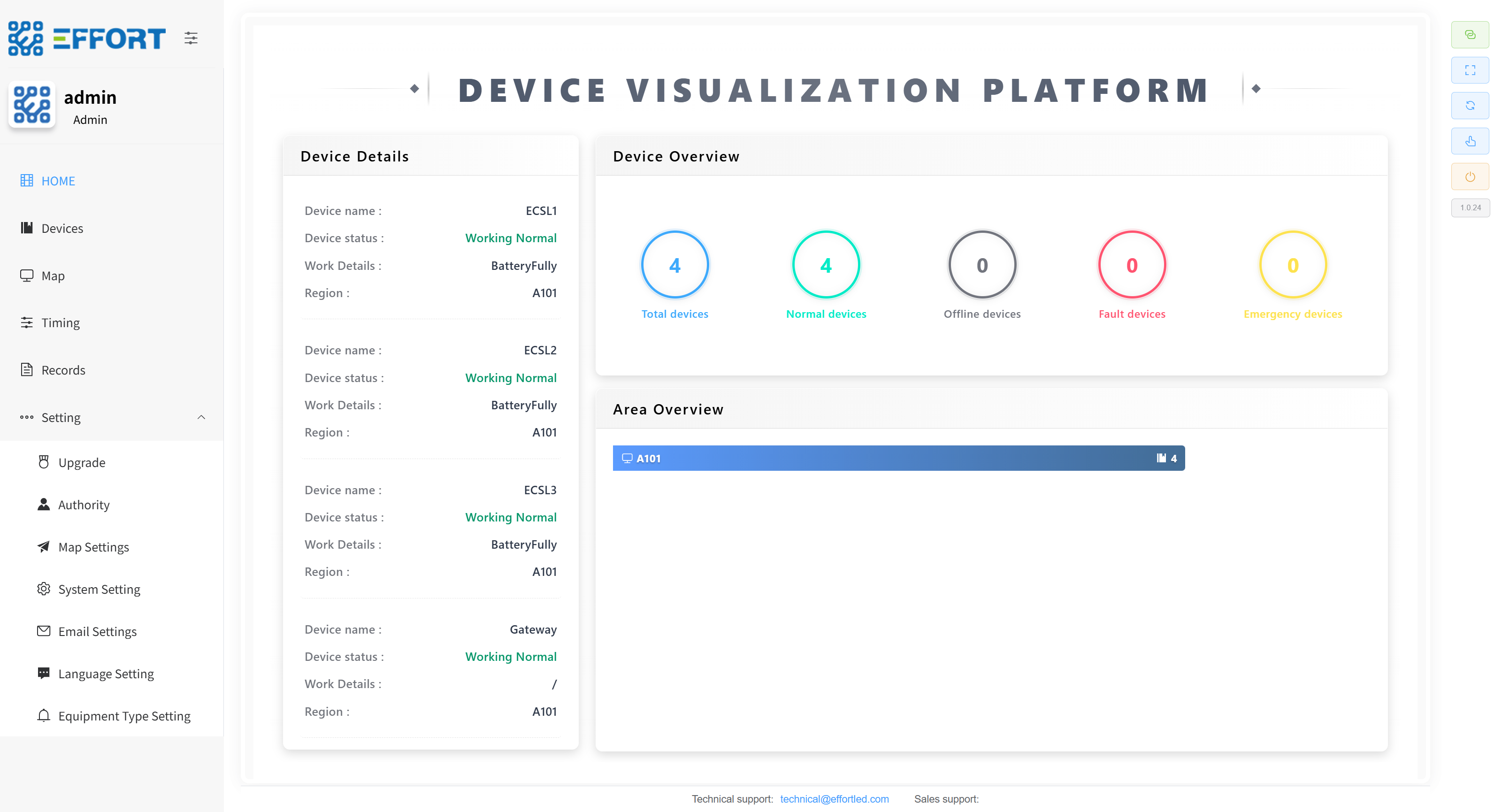
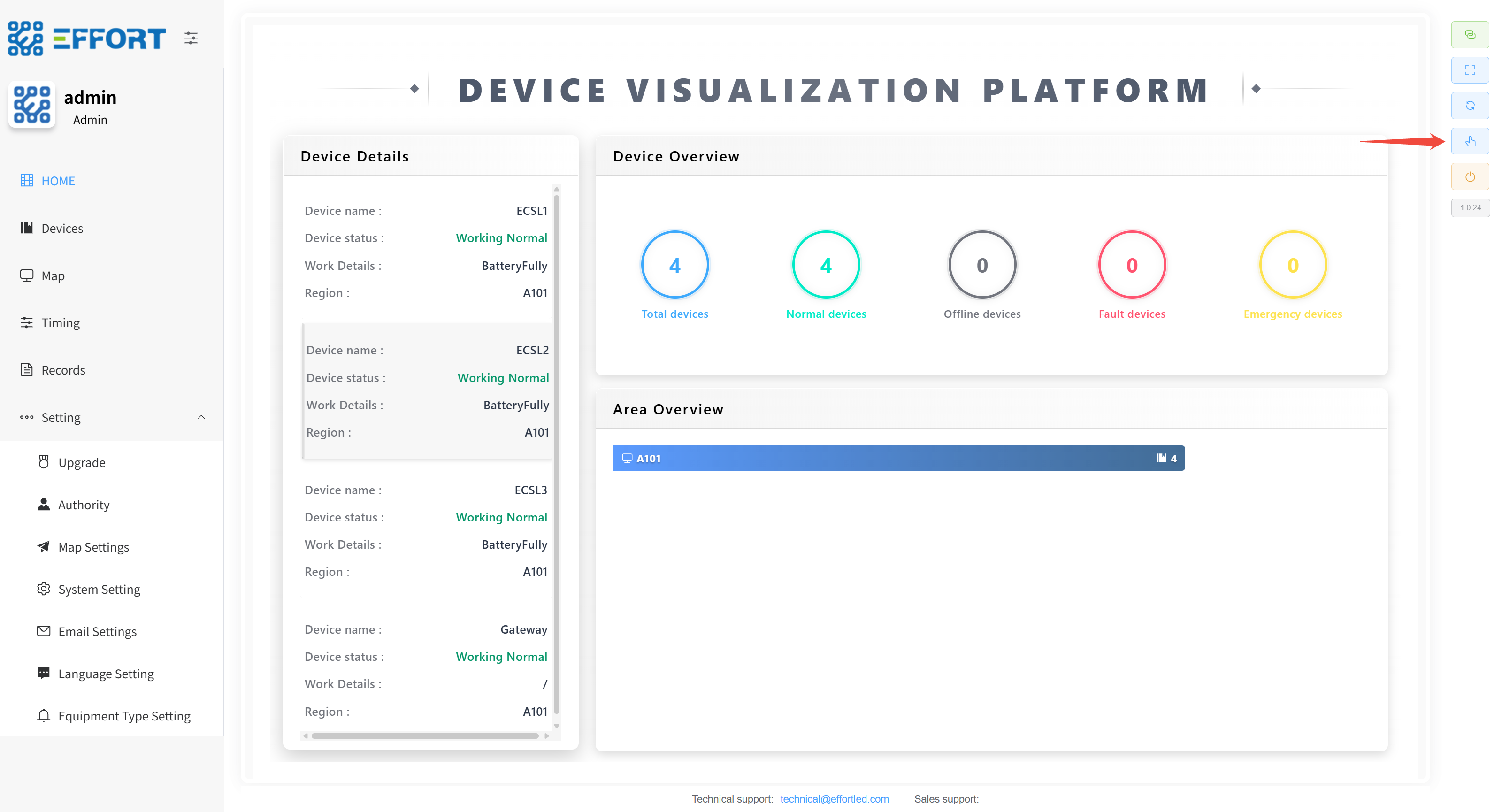
Enter the installation guide
- Click the Install Boot button
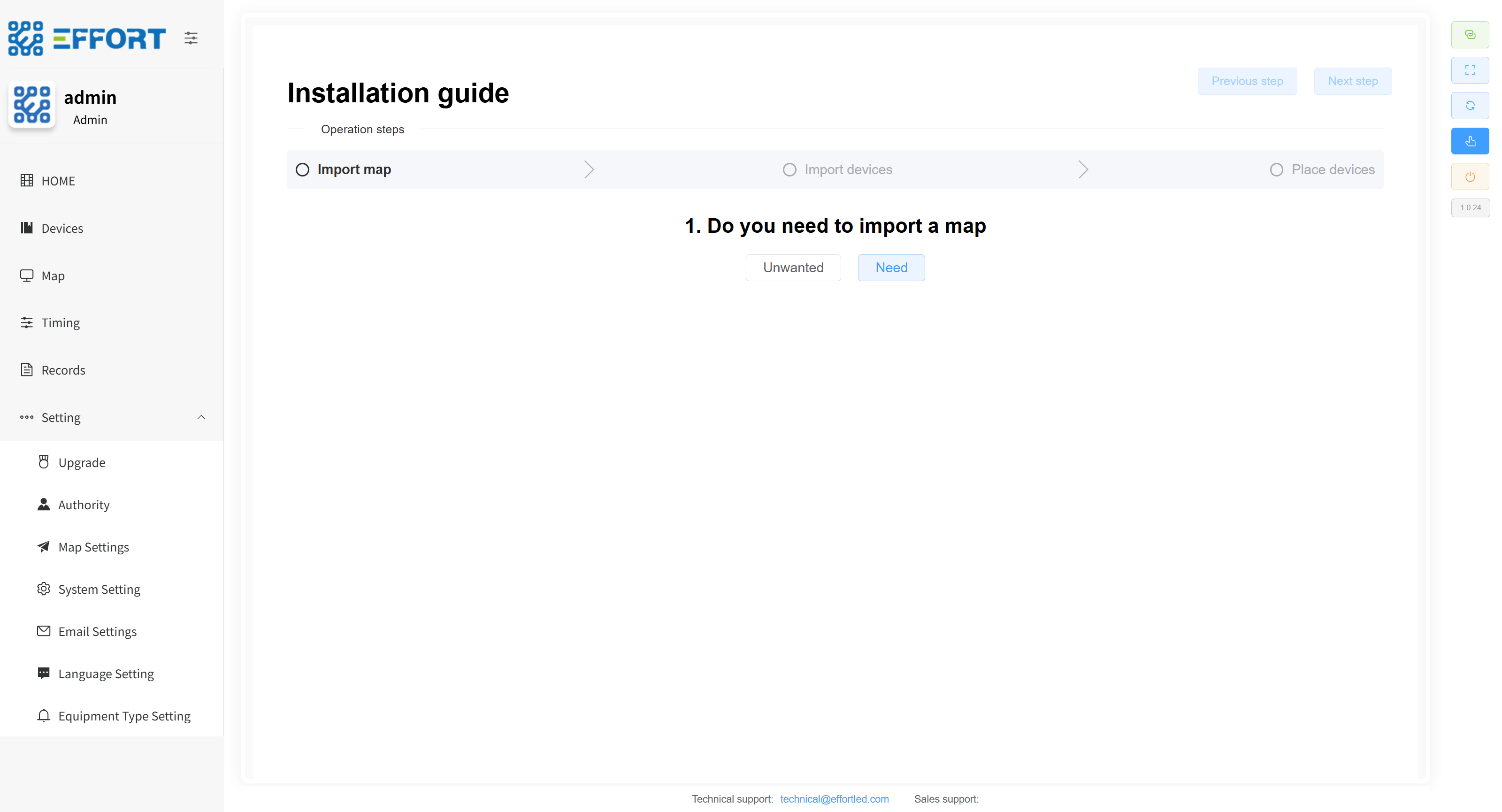
Map import
- Do you need to import maps? If you need to, click need. If not, click unwanted.
-
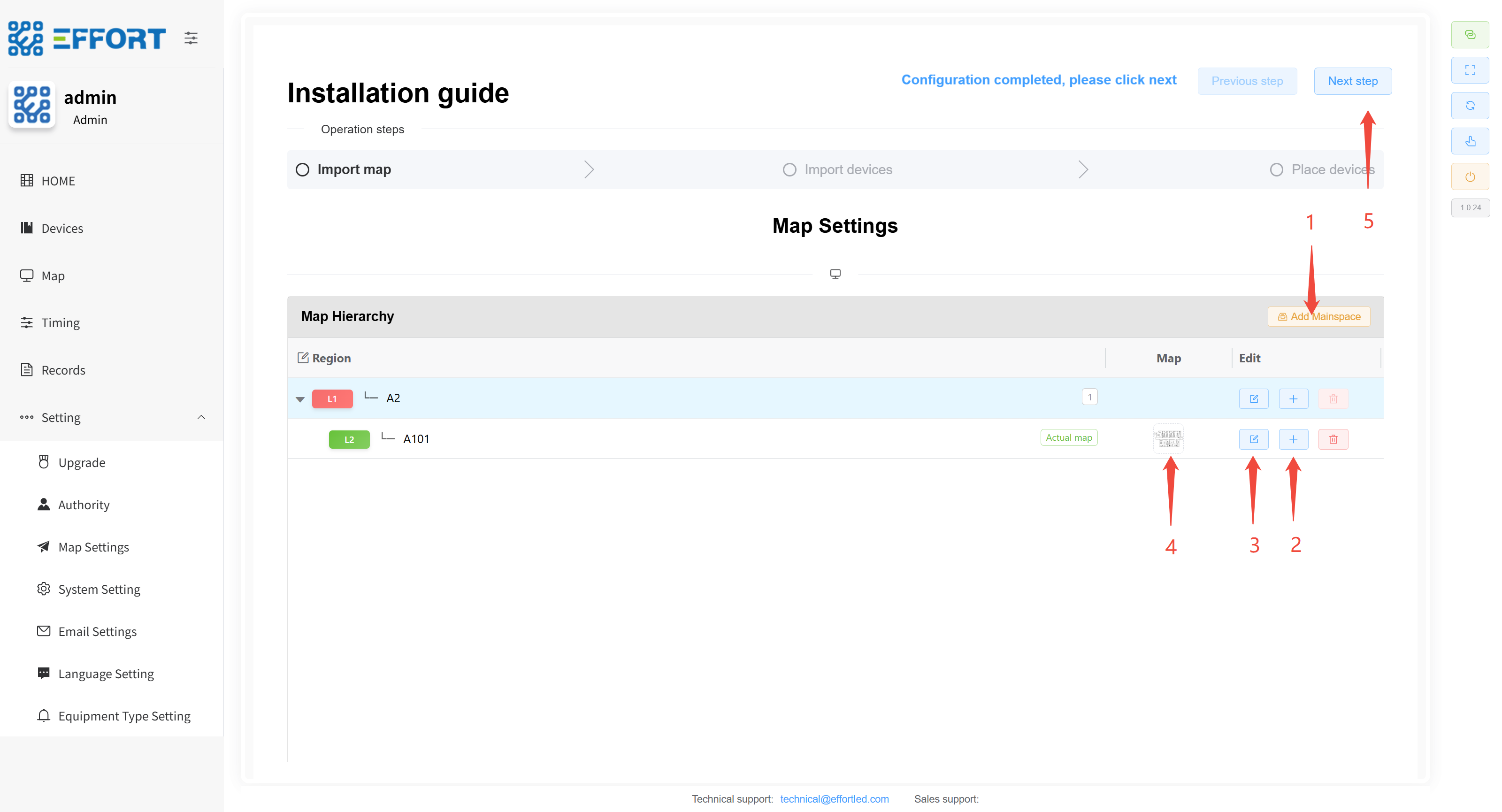
Map import steps
-
click Add Mainsapce to add the first-level area.
-
Click the icon, add, secondary area, you can continue to add down...
-
Click the icon to modify the area name.
-
In the last level area, upload the area map.
-
Configuration is complete, jump to the next step.
-
Gateway and device import
- Do you need to import the gateway? If you need to, click need. If not, click unwanted.
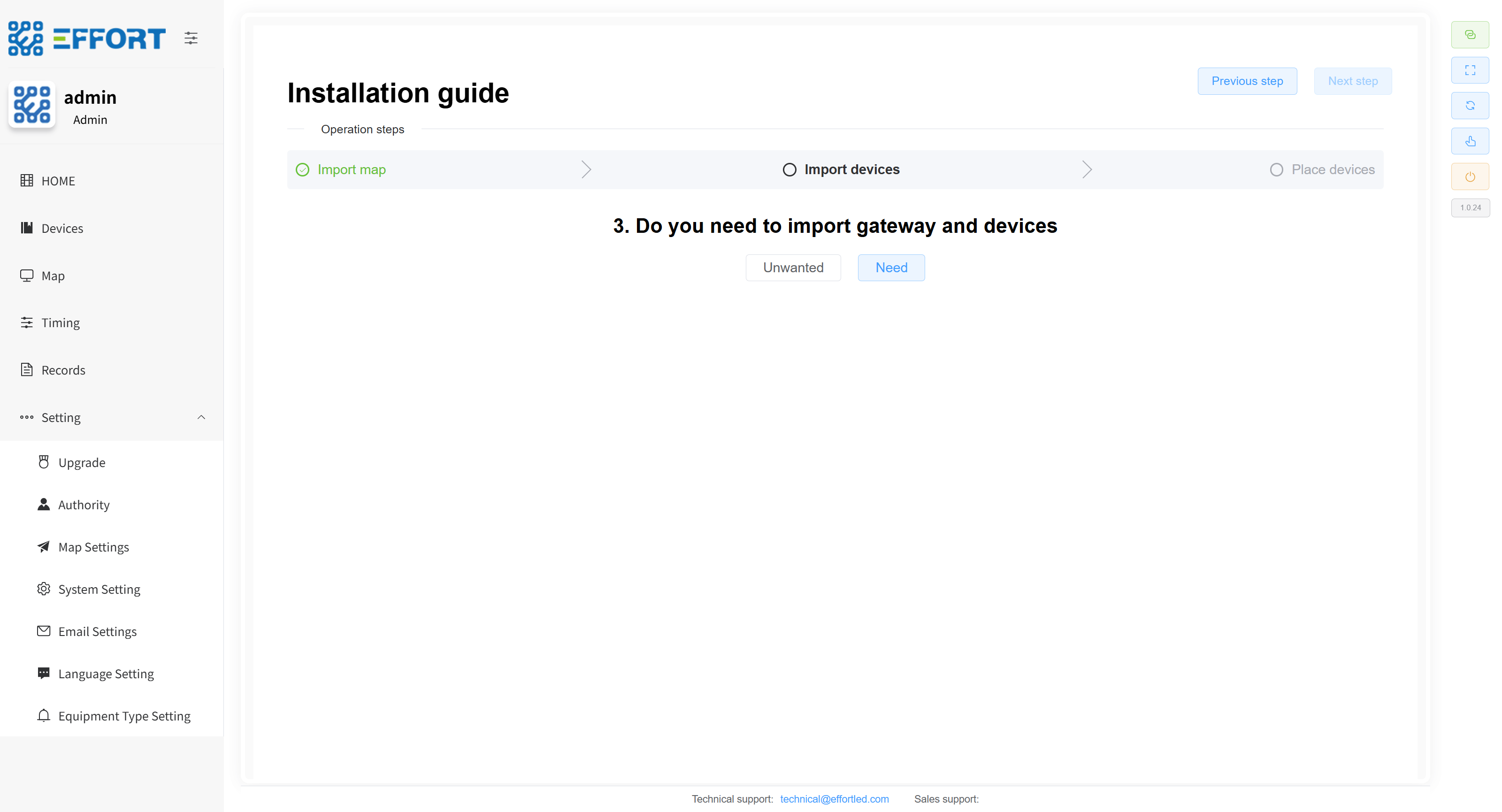
- Gateway import steps
- Click Search Gateway and wait for about 30 seconds.
- Click to select the searched gateway.
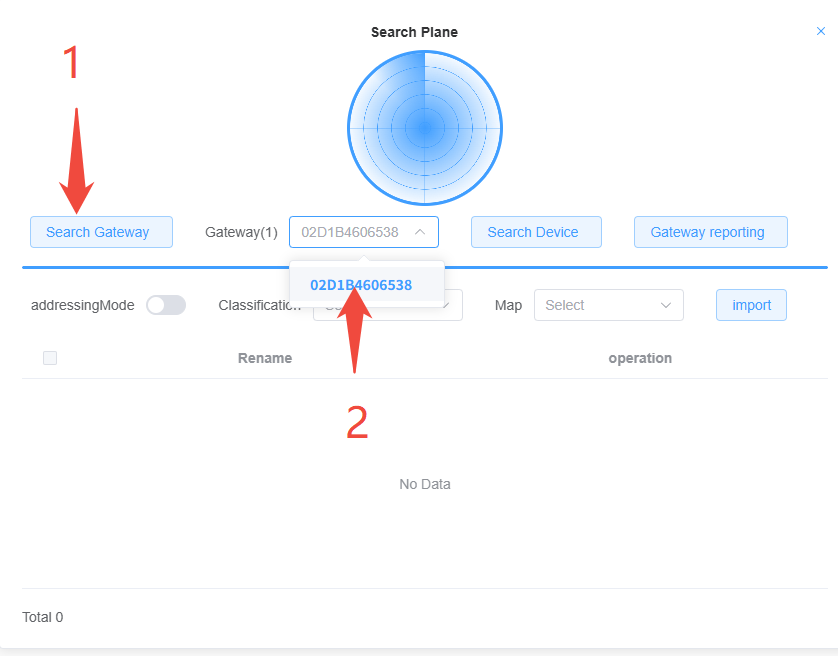
-
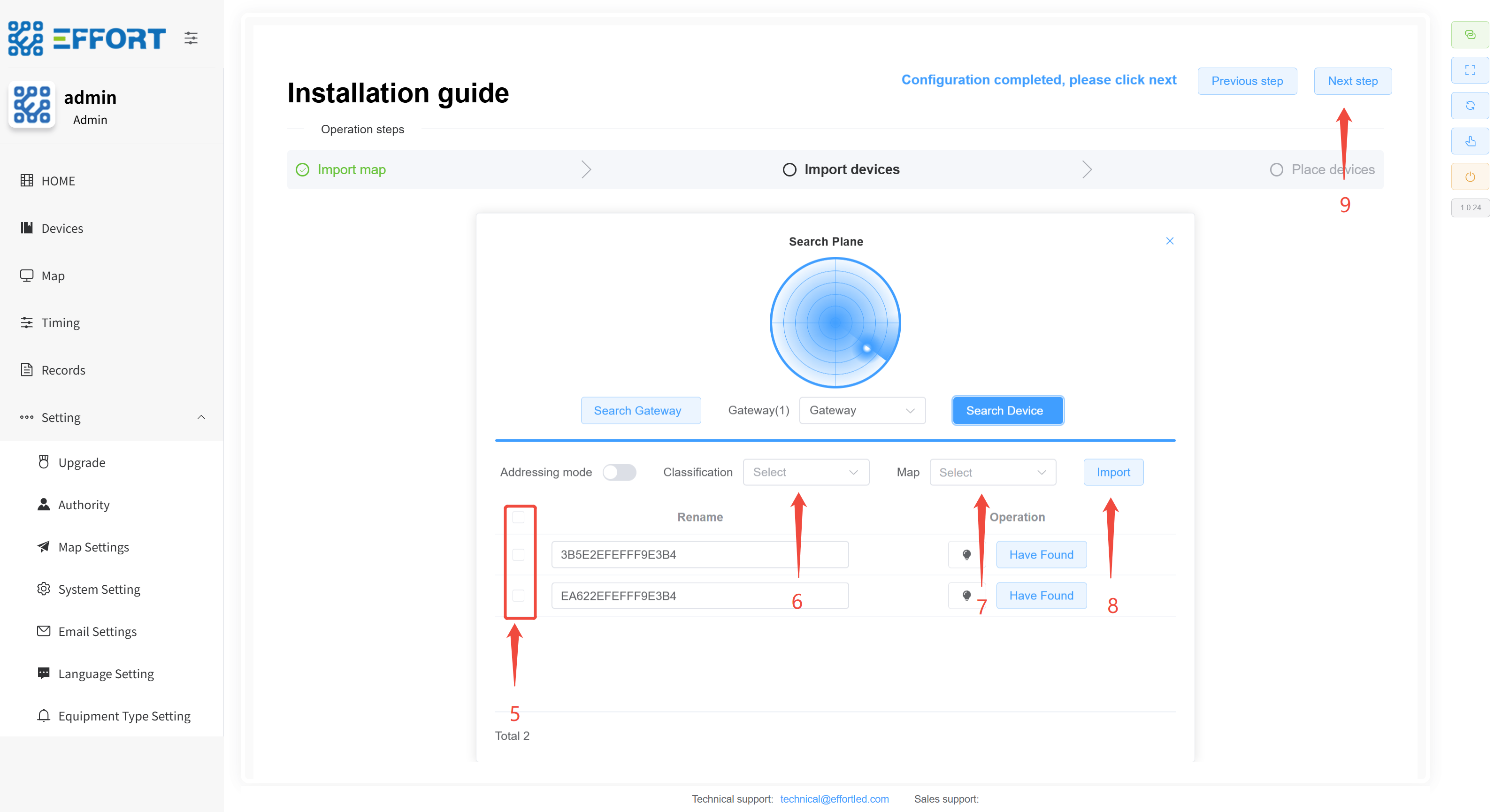
Device import steps
-
Select Gateway first
-
Click Search Device
-
If new devices need to be added after the installation phase, select "Gateway opens network and searches for new devices." If no new devices need to be added, select "Gateway reports the current existing devices."
-
Click Search Device
- Select device
-
Select device category
-
Select region
-
Click Import
-
Configuration is complete, jump to the next step
-

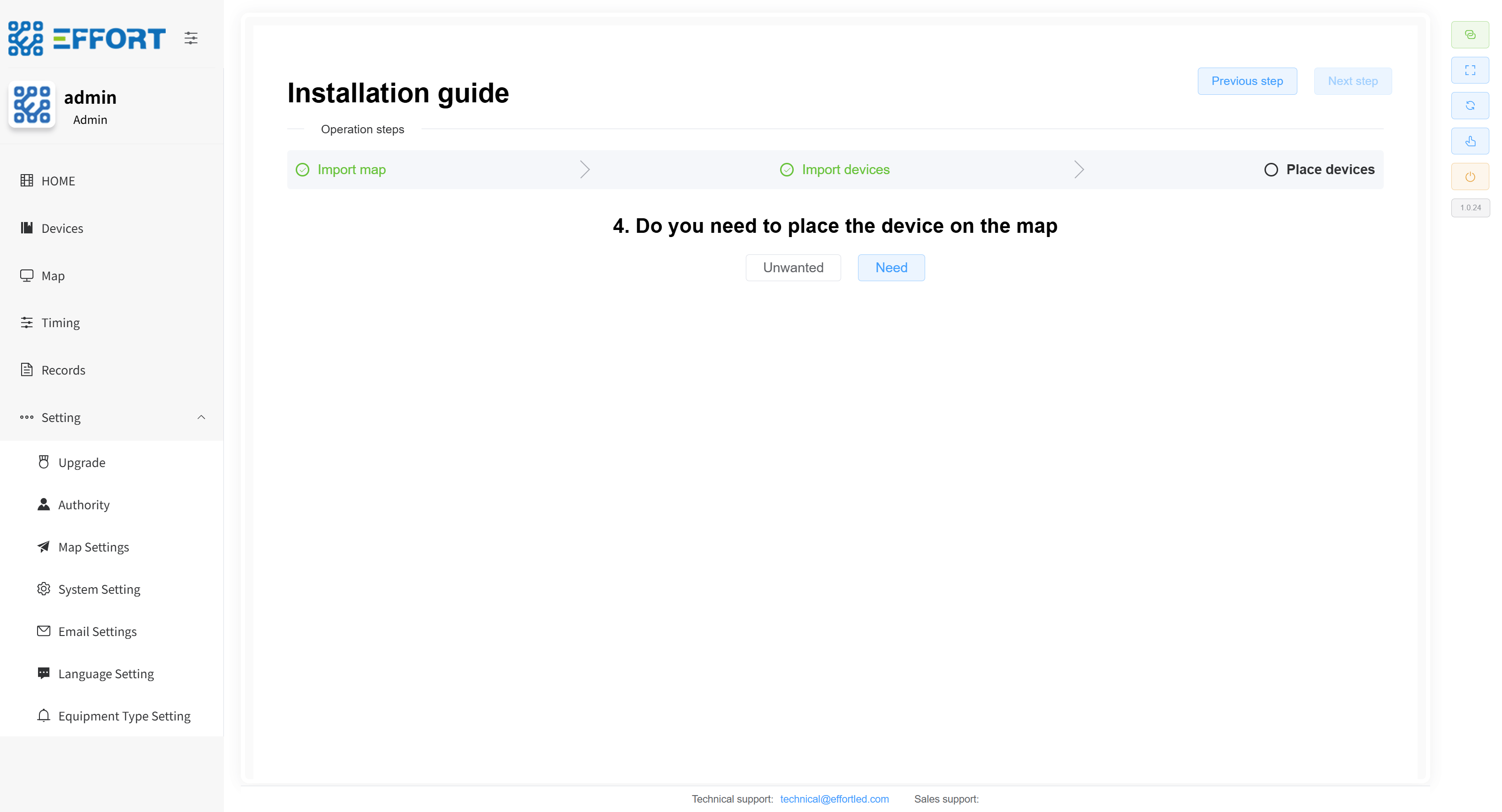
Equipment placement
- Do you need to place the device in a specific area? Click need if you need it, and click unwanted if you don't need it.
-
Device import steps
- Left-click and hold the device to drag it into the map.
- Configuration is complete, jump to the next step.

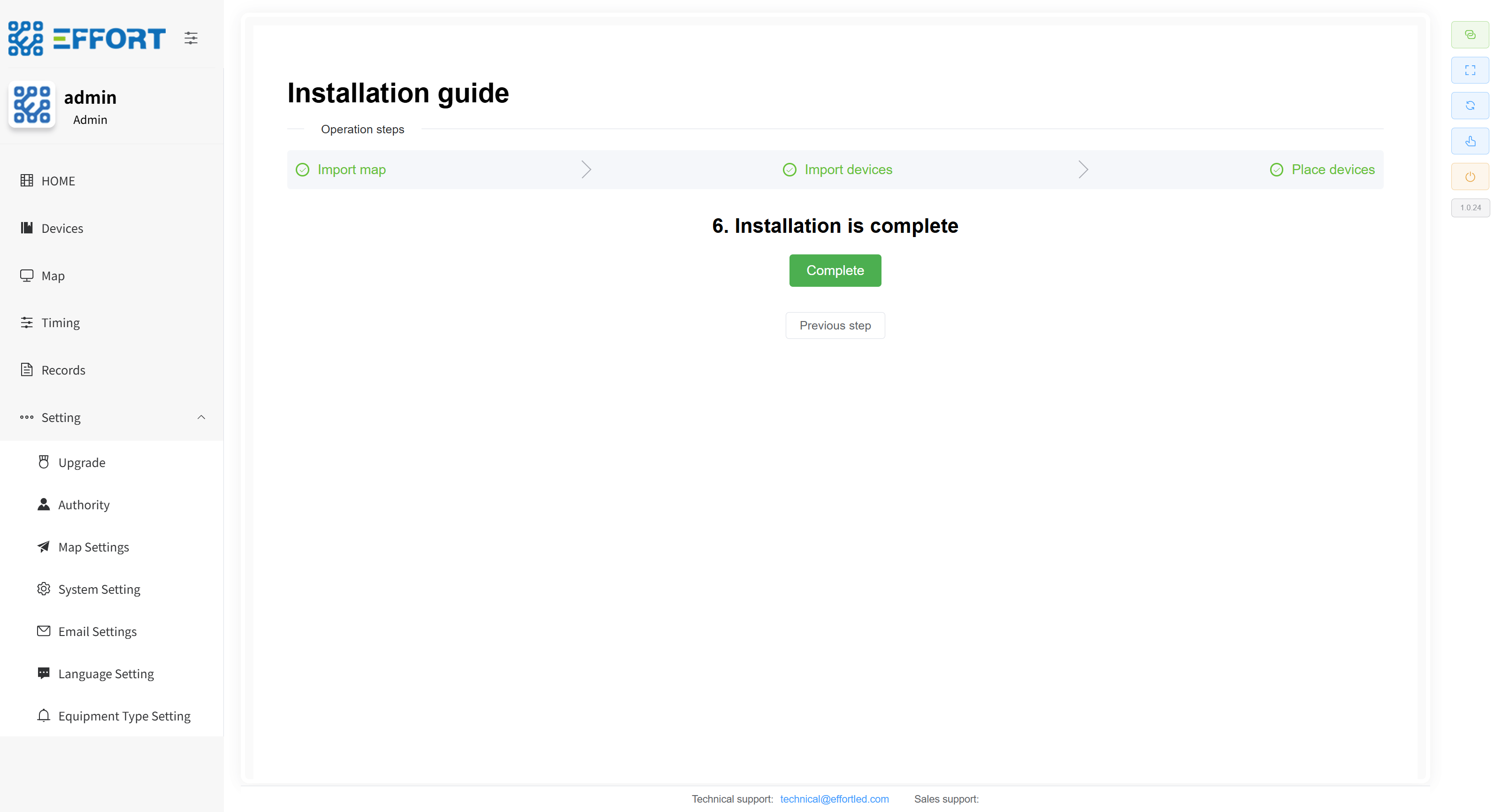
Import complete
- This step represents that the product has been imported into the system
技术支持与资源 (SafeMesh 无内容,为后续准备)
获取帮助:
- 技术支持门户网站 URL
- 支持邮箱地址
- 支持电话/热线号码
- 工作时间
- 在线社区/论坛链接
快速链接:
- 提供在线文档库网址 (如果文档在线)。
- 列出所有核心文档的直接下载链接或查找位置(如产品资料下载页面)。(此处必须包含之前提到的所有文档名称链接!)
No comments to display
No comments to display