
Safemesh remote_control manual
SafeMesh User Manual for Remote Control Function
This document is the user manual for the remote control function of the SafeMesh system
Version:V1.0
Release time:November 24, 2025
Publisher:EFFORT
1. Functional Description
- By using the remote control function, you can access the locally deployed software system on the remote Internet.
- In the office, different regional system software can be accessed by entering a specific domain name through a browser.
- The content of remotely accessed web pages is the same as that of locally deployed web pages, and the data is also shared.
2. Usage requirements
- :warning: System version number >= 1.0.20 .
- :warning: SafeMesh system has been installed locally.
- :warning: The remote control function can only be enabled within the local area network where the system is deployed.
- :warning: The local area network (LAN) where SafeMesh is installed must have the ability to access the Internet for the remote control function to work.
- :warning: Once the remote control function is turned off remotely, remote control cannot be performed unless the remote control function is enabled within the local area network where the system is deployed.
3. Usage steps
3.1 Configuration page
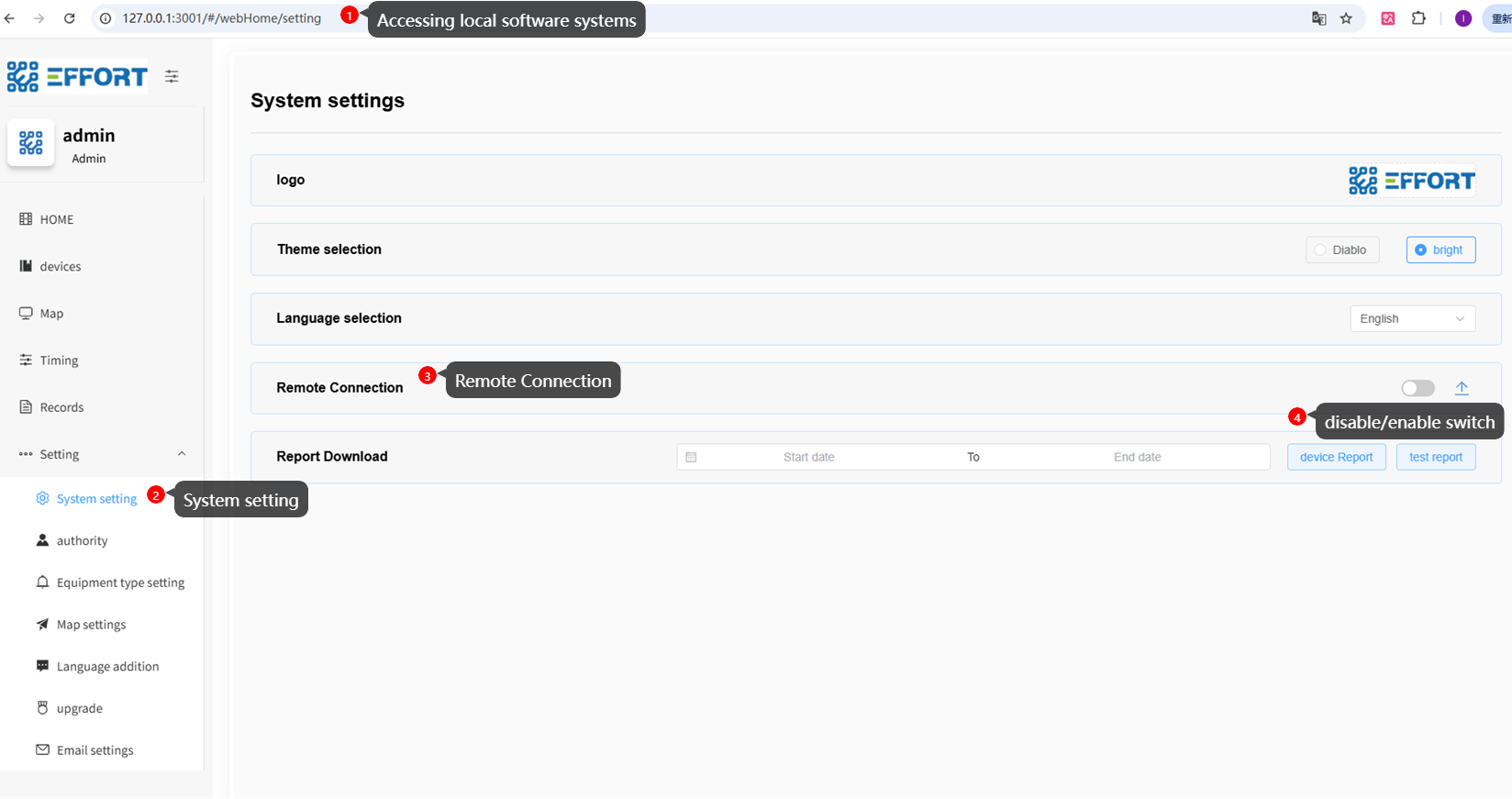
configuration path
Open the local system and enter the system configuration page.
Path: Setting -> System Setting -> Remote Connection
3.2 First time use function
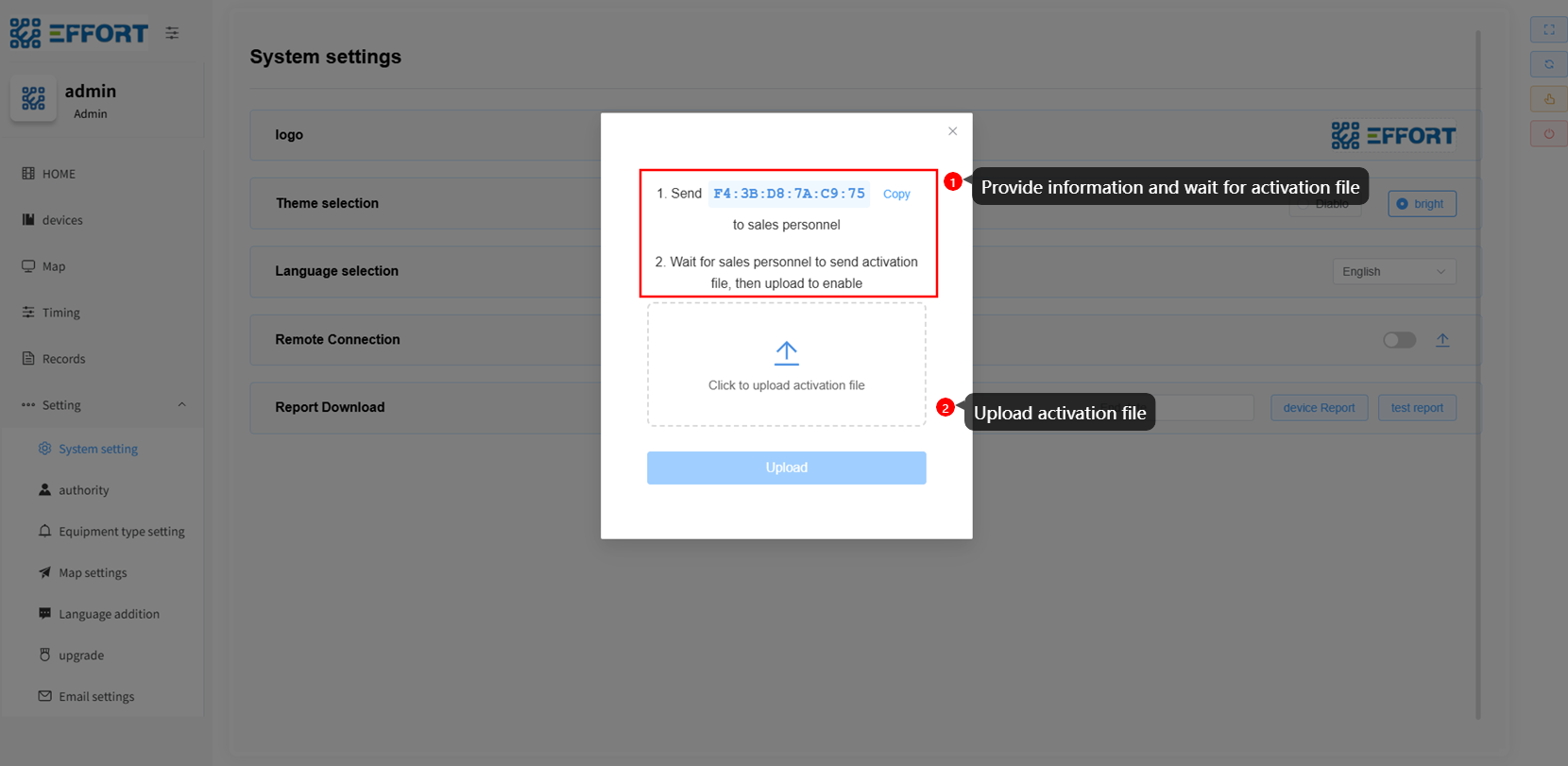
First-time use
When the remote control function is first enabled, a prompt will appear because there are no activated files on the local host.
You need to follow the prompts to send the local key (and the domain name you want) to the system provider. When the system supplier prepares the activation file and sends it to you, you can upload the activation file.
3.3 Select activation file
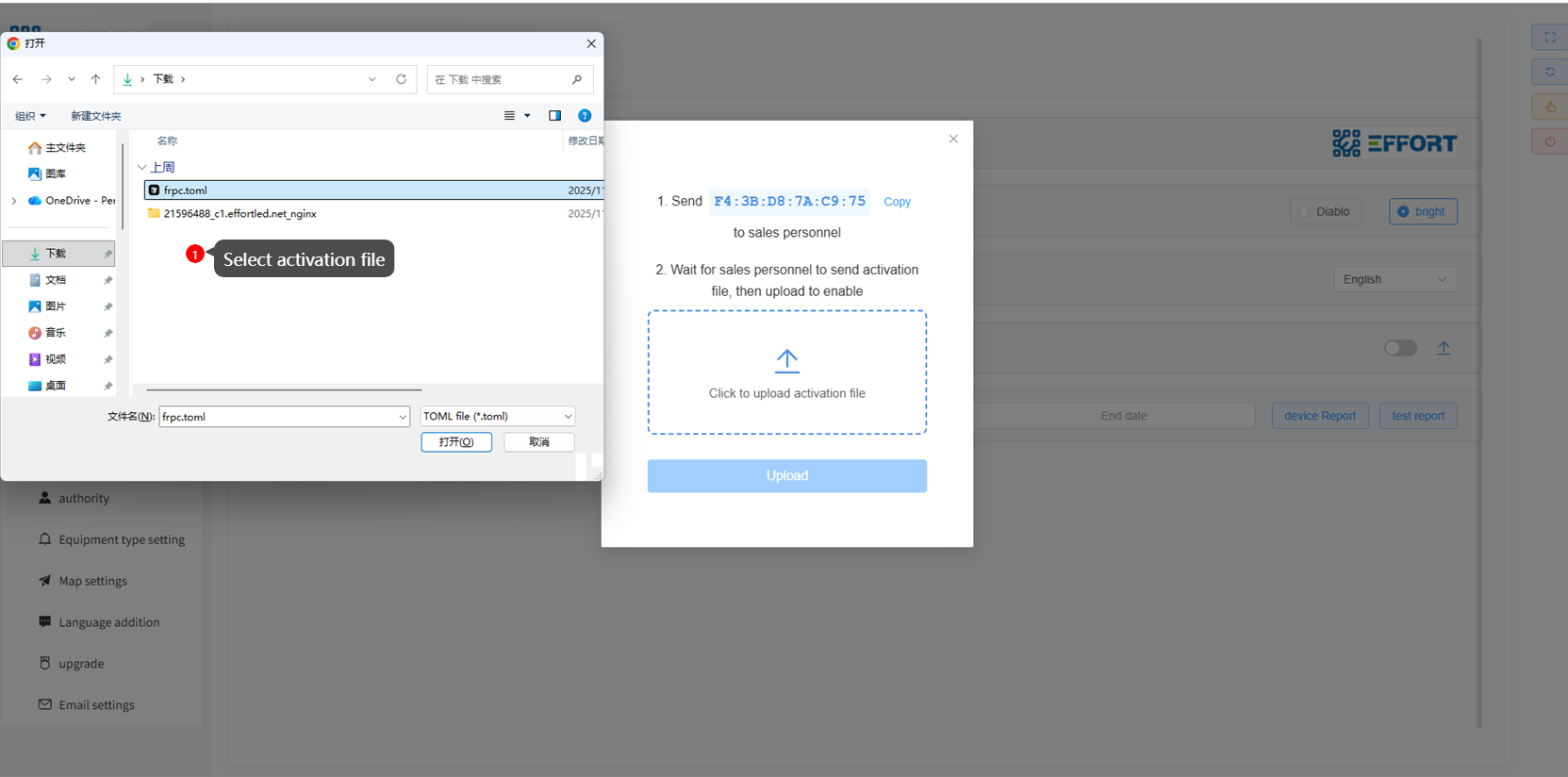
Select activation file
After receiving the activation file, click "click to upload activation file" and select the activation file.
3.4 Upload file
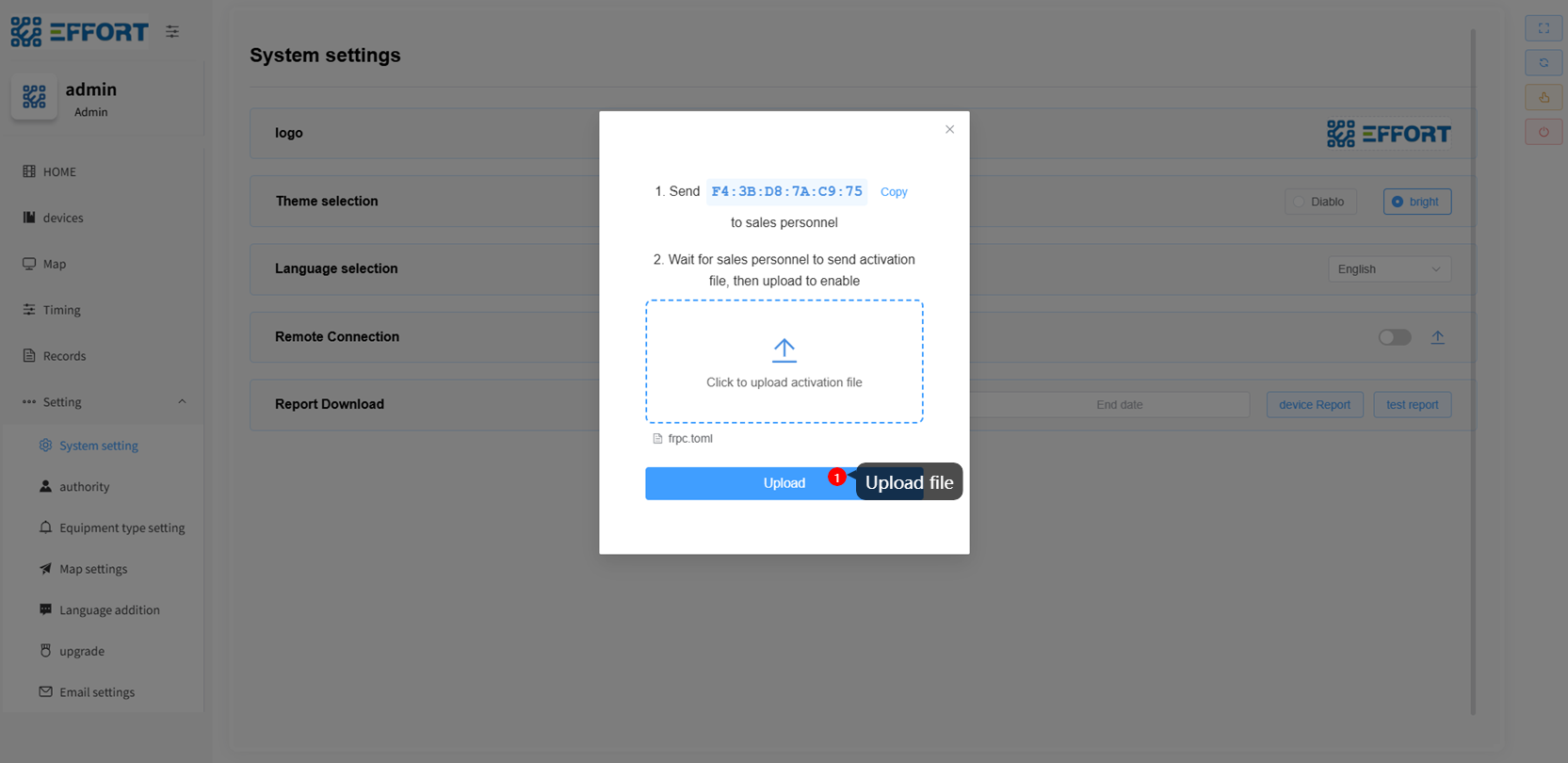
Upload file
Click 'Upload' to upload the activation file.
3.5 The configuration page after uploading the activation file
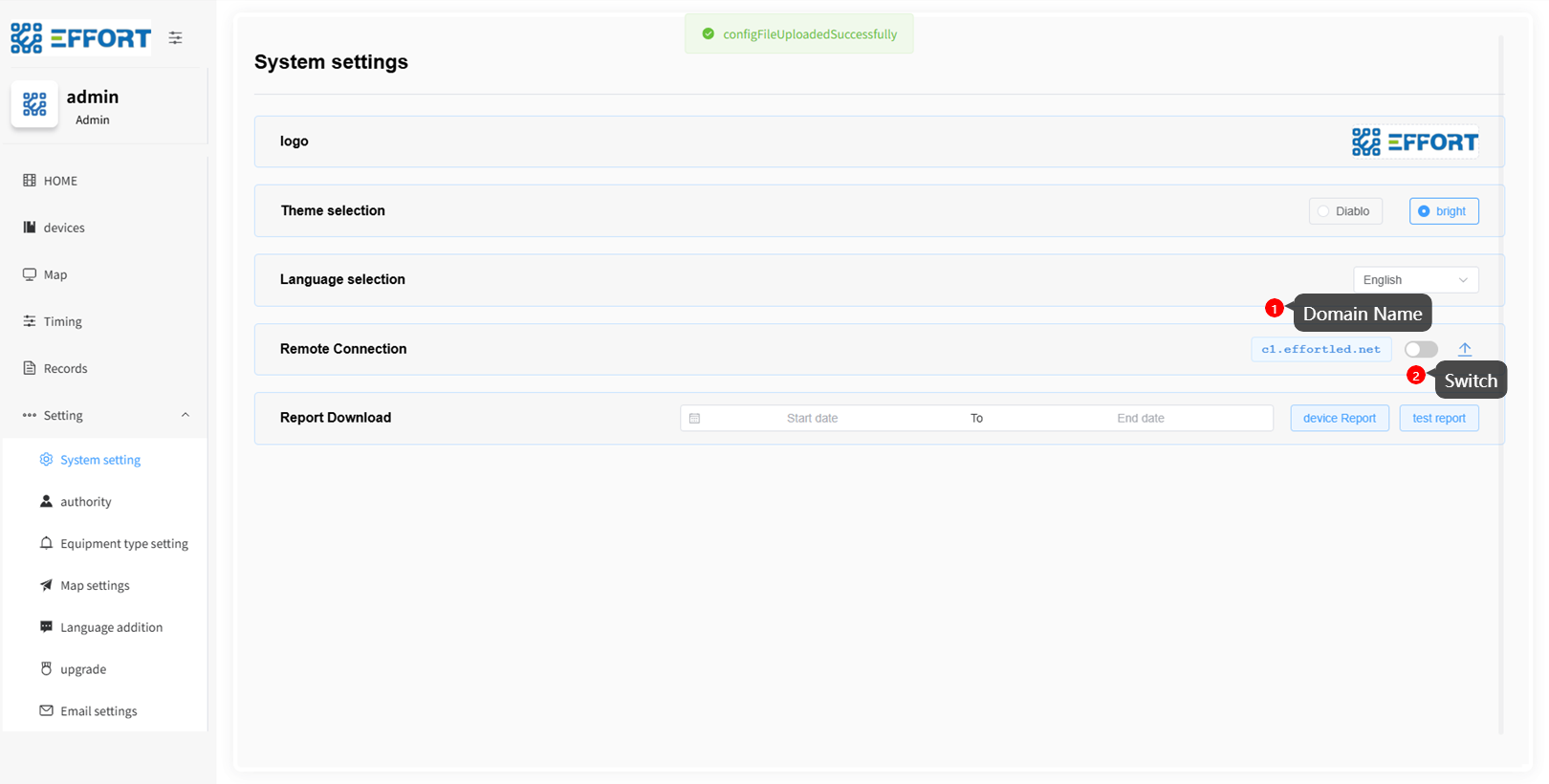
After configuration
You can see the remote access domain name marked as 1 on the page. The button labeled 2 can be used to turn on or off the function.
3.6 Open function
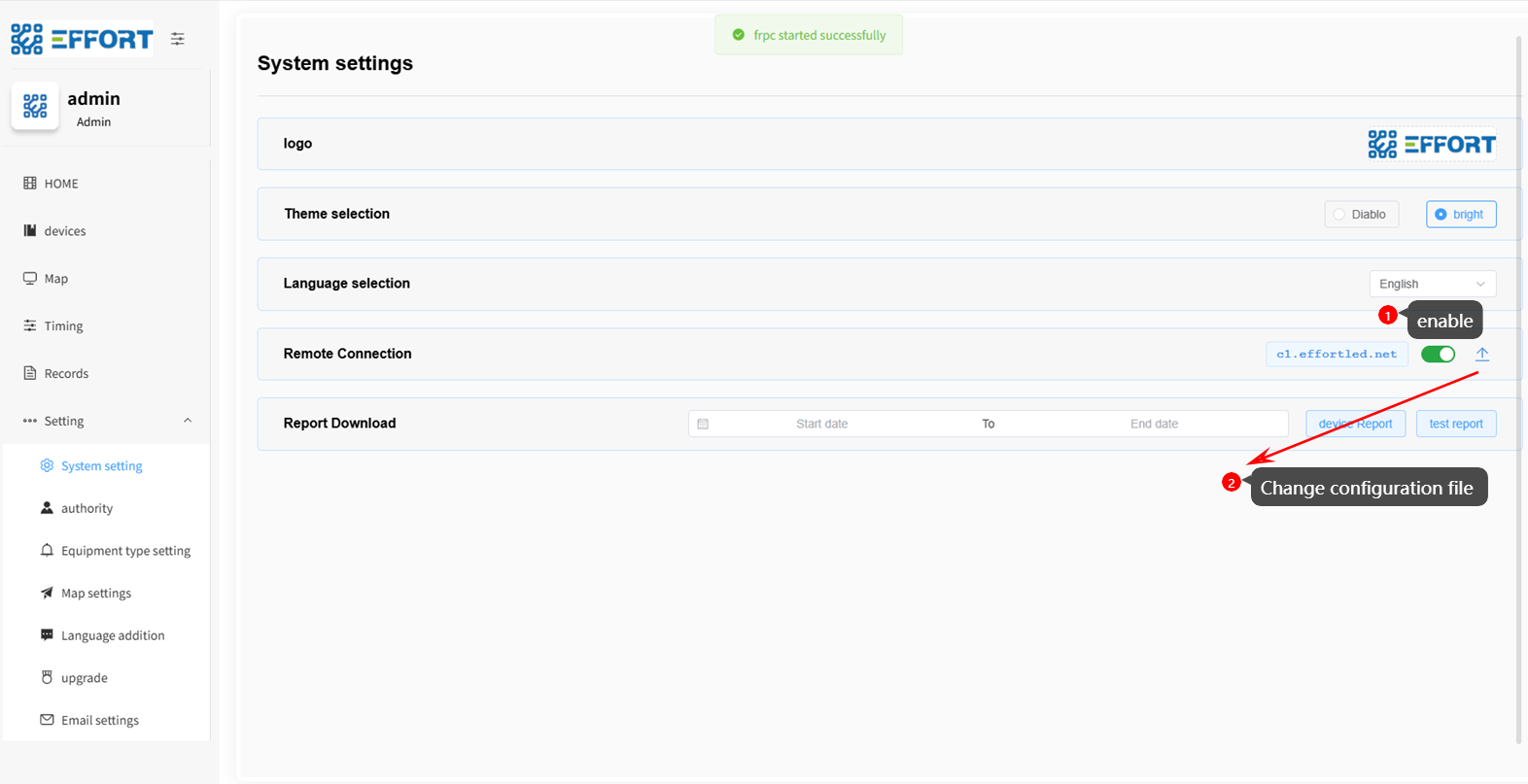
enable function
3.7 Remote access through domain name
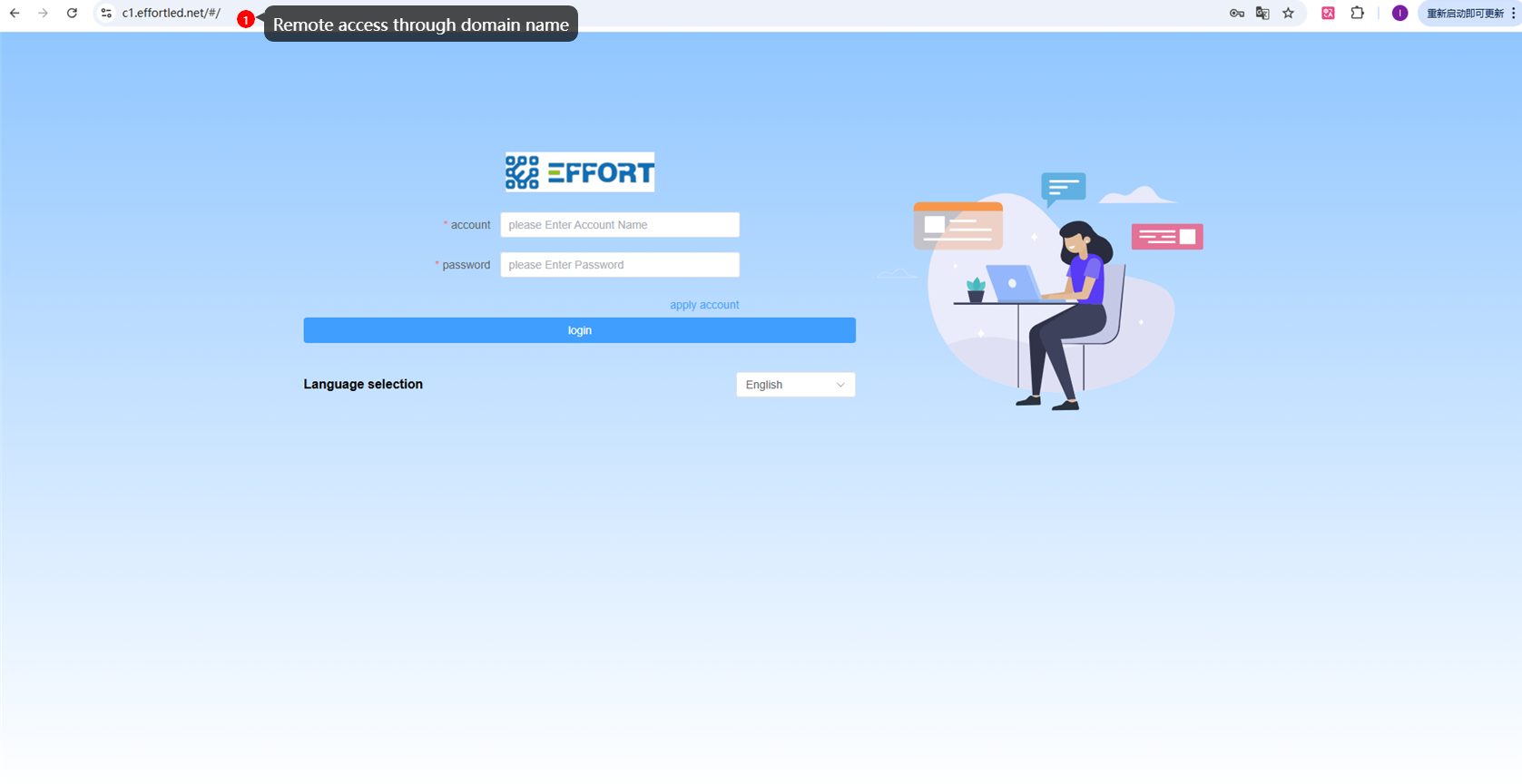
remote access
By entering the domain name in the browser, remote access can be performed.
4 Q&A
Q:No activation file
A:Please communicate with the seller of your system and provide relevant information to obtain the activation file later.

Q:I have uploaded the file but still cannot access it
A:Please check the following steps:
    1. Ensure that after uploading the activation file, you have clicked the switch button on the configuration page to enable the remote function.
    2. Check if the local network where SafeMesh is installed has normal Internet access.
    3. Check if the local firewall or network security policies are blocking SafeMesh's outbound connections.
5 Technical support
- Technical support email:technical@effortled.com
No comments to display
No comments to display